

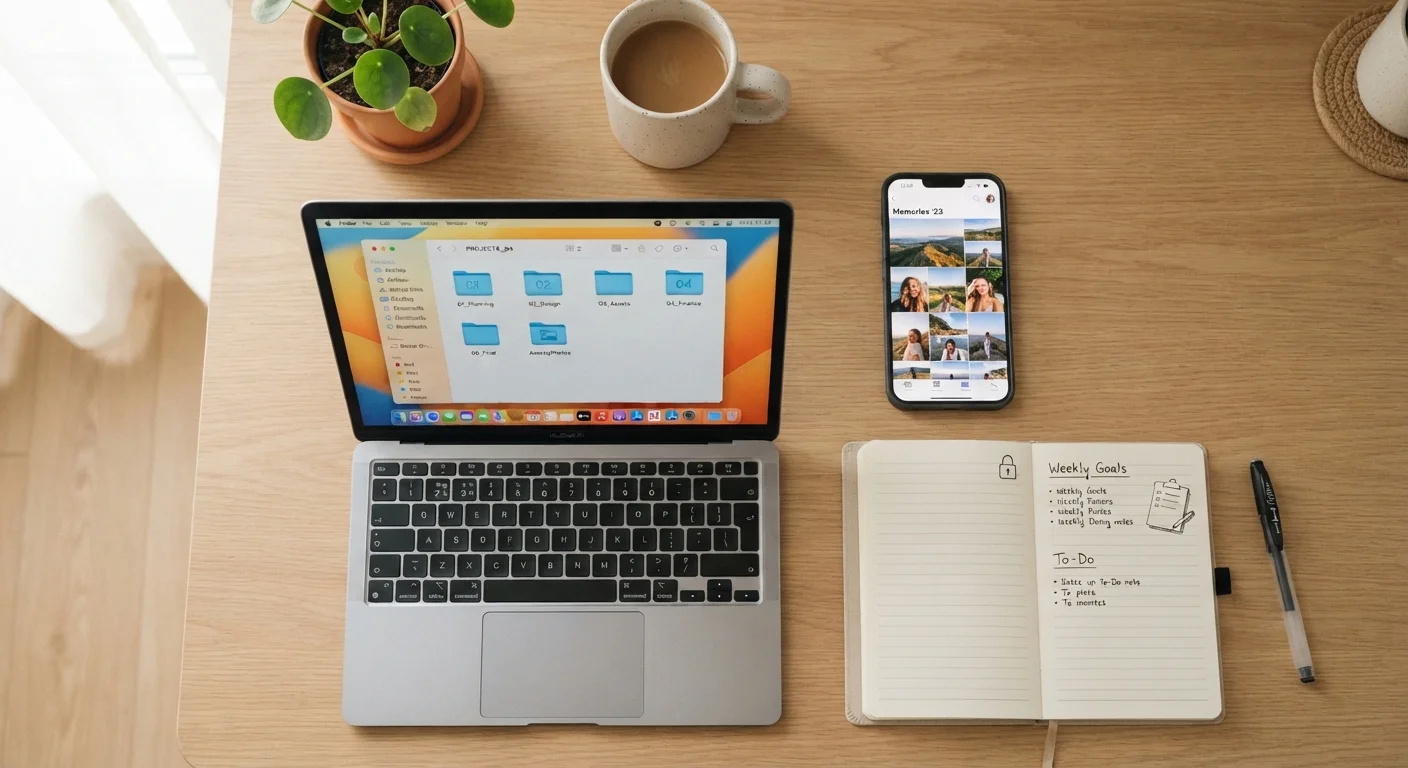
Key Takeaways
Why Digital Clutter Feels Overwhelming
Most people don't set out to create a disorganised digital life — it accumulates gradually. A download here, a camera roll that never gets sorted, passwords jotted on sticky notes or reused across dozens of sites. Before long, finding anything feels like a chore.
The good news is that you don't need to be technically minded to fix this. Digital organisation is largely about decisions and habits, not software expertise. Think of it the same way you'd approach tidying a cluttered room: the goal isn't perfection, it's a system you can actually maintain. If you're curious how this overlaps with physical filing, paper, digital, and hybrid filing each have distinct trade-offs worth understanding before you commit to an approach.
68%
Adults who reuse passwords across accounts
According to Google and Harris Poll survey data, a majority of US adults knowingly reuse passwords across multiple online accounts.
3,000+
Average photos on a smartphone
Industry estimates suggest the typical smartphone user accumulates thousands of photos, many of which are duplicates or unneeded.
1 in 3
People who have lost data due to no backup
Surveys by data recovery firms consistently find that roughly a third of users have experienced data loss that a backup would have prevented.
Getting Your Files Under Control
The foundation of any organised digital life is a consistent folder structure. Without one, files pile up in Downloads, on the Desktop, or wherever an app happens to save them by default.
Build a folder structure that mirrors your life
Start with a small number of top-level folders — typically five to eight covers most people's needs. Common categories include Work, Finance, Health, Home, Creative Projects, and Reference. Inside each, use sub-folders by year or project rather than by file type. Searching by context (when or why you created something) is almost always faster than searching by format.
Name files so you can find them later
Use clear, descriptive names. A file called invoice_2024-03_plumber.pdf is far easier to locate than Scan001.pdf. The date-first format (YYYY-MM) keeps files sorted chronologically in any file browser without extra effort.
Decide where files live
This is the cloud vs. local storage question. Cloud storage keeps files accessible across devices and backed up automatically; local storage gives you control and offline access. Many households benefit from a combination. This side-by-side breakdown of cloud versus local storage can help you decide what belongs where.
Before you create any new folder, spend two minutes sketching your top-level categories on paper. Folders created on the fly tend to overlap and multiply — a quick plan prevents that.
The most common reason folder systems collapse is that categories weren't thought through upfront, leading to duplicate folders and files spread inconsistently across both.
Set your Downloads folder to auto-clear files older than 30 days, or make it a rule to treat Downloads as a temporary inbox — nothing lives there permanently.
Downloads folders are the single most common source of digital clutter because files land there by default and are rarely moved to a permanent location.
Taming Your Photo Library
Photos are often the biggest source of digital disorder. Smartphones make it effortless to take hundreds of images a month, but without a simple sorting habit, libraries quickly become unnavigable.
Delete duplicates and obvious rejects first
Before organising anything, do a quick cull. Remove blurry shots, accidental captures, and the four near-identical photos you took before getting the angle right. Most phone galleries and desktop photo apps include tools to surface duplicates automatically — use them. Culling first makes everything that follows much faster.
Organise by date and event
Most photo apps default to a chronological view, which is a reasonable starting point. The extra step that makes a library genuinely useful is adding event-based albums or folders: 2024 – Family Holiday, 2023 – Home Renovation, and so on. You don't need to tag every image — just group the ones that matter into named albums so they're retrievable without scrolling.
Set up automatic backup
A photo that exists only on your phone is one dropped device away from being lost permanently. Enable automatic backup to a cloud service or an external drive so that your library is protected without requiring you to remember to do it manually.
Managing Passwords Without the Headache
Passwords are arguably the most neglected corner of digital life. Reusing the same password across multiple accounts is one of the most common — and consequential — security habits people fall into. When one site experiences a data breach, every account sharing that password becomes vulnerable.
What a password manager actually does
A password manager is an app that stores and auto-fills your login credentials securely. You create one strong master password to unlock it; the app handles the rest. It can generate long, random passwords for every site, remember them, and fill them in automatically. Password managers demystified covers exactly how they work and what to look for if you're new to the concept.
Strong passwords vs. passphrases
You may have heard that a string of random words — a passphrase — can be just as secure as a complex jumble of characters and far easier to remember. Both approaches have merit depending on the situation. See how passwords and passphrases compare to understand which suits different accounts best.
Never Store Passwords in a Plain Text File
Keeping passwords in a note, spreadsheet, or document — even one stored on your own device — is a significant security risk. If your device is compromised or accessed by someone else, every password is immediately exposed. A dedicated password manager encrypts your credentials so that even if the file were accessed, it would be unreadable without your master password.
Once a password manager is in place, the practical next step is a broader account hygiene review. The digital privacy audit checklist walks through accounts, devices, and apps to catch the most common gaps.
Bringing It All Together
Organising files, photos, and passwords doesn't have to happen in a single weekend. In fact, tackling one area at a time tends to produce more durable results than a frantic all-day overhaul that leaves you too burnt out to maintain anything.
A simple maintenance rhythm
The goal after the initial setup is to keep clutter from rebuilding. A short weekly habit — clearing your Downloads folder, deleting junk photos, flagging any new files that need a proper home — takes five to ten minutes and prevents the slow drift back toward chaos. Monthly, check that your backups are running and that no important documents have been left unsorted.
Don't neglect your inbox
Email is its own category of digital clutter and interacts directly with files and passwords — attachments pile up, account notifications go unread. Keeping your inbox under control covers filters, folders, and unsubscribing strategies that complement everything covered here.
Security runs through all of it
Organisation and security aren't separate concerns. A tidy file structure means you notice if something is missing; a password manager means you can safely use unique credentials everywhere; an organised photo library with reliable backup means you won't lose irreplaceable memories. For a comprehensive view of how these habits connect, personal data protection end to end ties device settings, account hygiene, and browsing habits into one picture.
Start with whichever area causes you the most friction right now. One area sorted is already a meaningful improvement — and it tends to create momentum for the next.