

Key Takeaways
Why Default Settings Rarely Work in Your Favor
When you set up a new device or create an account, the default settings are optimized for the company's interests — not yours. That typically means location tracking is on, ad personalization is enabled, and data sharing with partners is permitted. Most people move through setup screens quickly and never return to revisit them.
The good news: privacy settings don't require technical expertise to adjust. They require only a few minutes and the right checklist. This guide focuses on the specific settings that have the largest impact and are most commonly left untouched. For a broader overview of how apps gather information in ways you may not expect, see how apps collect data quietly.
Phone Settings Worth Revisiting Today
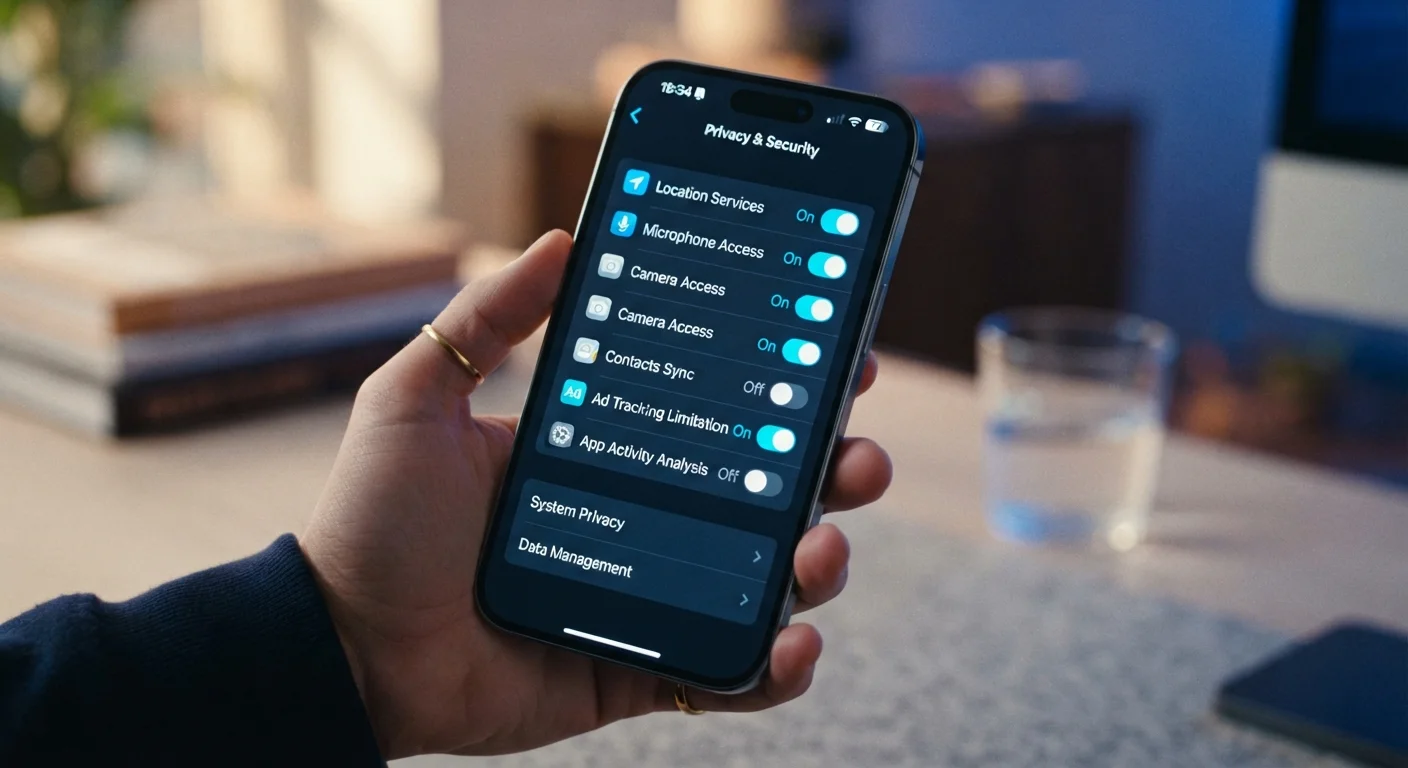
Your smartphone holds more personal information than almost any other device — and several of its default settings are worth examining closely.
Set location access for apps to 'While Using' rather than 'Always'
Granting permanent background location access means apps can track your movements even when you're not actively using them. This data is frequently shared with advertising networks and data brokers. Limiting access to active use only dramatically reduces how much location history is built up over time.
Disable 'Personalized Ads' or 'Ad Tracking' in your device's privacy settings
Both iOS and Android include a system-level setting that limits how apps use your device's advertising identifier to build a behavioral profile across multiple services. Turning this off doesn't eliminate ads, but it prevents cross-app tracking from feeding a detailed dossier about your interests and habits.
Audit and revoke permissions for apps you rarely use
Apps you installed years ago may still hold active access to your microphone, contacts, or camera. If the app is rarely opened, that access serves no practical purpose but still represents an open door. Periodic reviews let you revoke stale permissions without uninstalling anything.
Remove third-party apps connected to your social or email accounts
When you log in to a service using 'Sign in with Google' or 'Continue with Facebook,' that third party gains ongoing access to your account data — often far beyond what the initial sign-in implied. These connections persist even if you stop using the app. Regularly reviewing and revoking unused connections closes a frequently forgotten vulnerability.
Turn off 'activity-based' ad personalization on social platforms
Most social networks use your off-platform browsing behavior — gathered through tracking pixels embedded on other websites — to serve targeted ads. This off-site tracking happens without most users knowing, and the opt-out is buried in settings menus. Disabling it limits how much external behavior feeds back into your social profile.
Review who can see your profile, posts, and contact details on social accounts
Social platforms change their default audience settings over time, and what was once restricted to 'Friends' may now be set to 'Public' after an update. Information like your phone number, email address, or location tag can be used for targeted phishing or identity verification by bad actors if left publicly visible.
For a deeper look at what individual permissions actually grant access to, app permissions explained in plain language breaks each one down clearly.
Browser and Social Account Settings You've Probably Overlooked
Browsers and social platforms are two of the highest-traffic points in your digital life — and both come with privacy controls that most users never touch.
Social platforms often add new data-sharing options after major updates, quietly resetting or expanding what they collect. Checking your settings every few months takes under five minutes and can reverse changes you never agreed to. For a practical walkthrough specific to browsers, browser privacy settings worth enabling covers the most impactful toggles.
Settings Can Change After Platform Updates
Social media platforms and operating systems sometimes reset or modify privacy settings when they release major updates. A setting you adjusted six months ago may not still be set the way you left it. It's worth doing a brief check after any significant platform update — not just when you first set up a device or account. This is a known pattern, not an oversight on your part.
If you want to go further and audit your entire digital footprint across devices, accounts, and habits, the digital privacy audit checklist is a structured place to start.