

Key Takeaways
Start here
What the Internet Actually Is
Next
Browsers, Search Engines, and Websites: What's the Difference?
Then
The Cloud: Where Your Files Really Live
When you're ready
Staying Safe Online: The Basics
Wrap up
Putting It All Together
What the Internet Actually Is
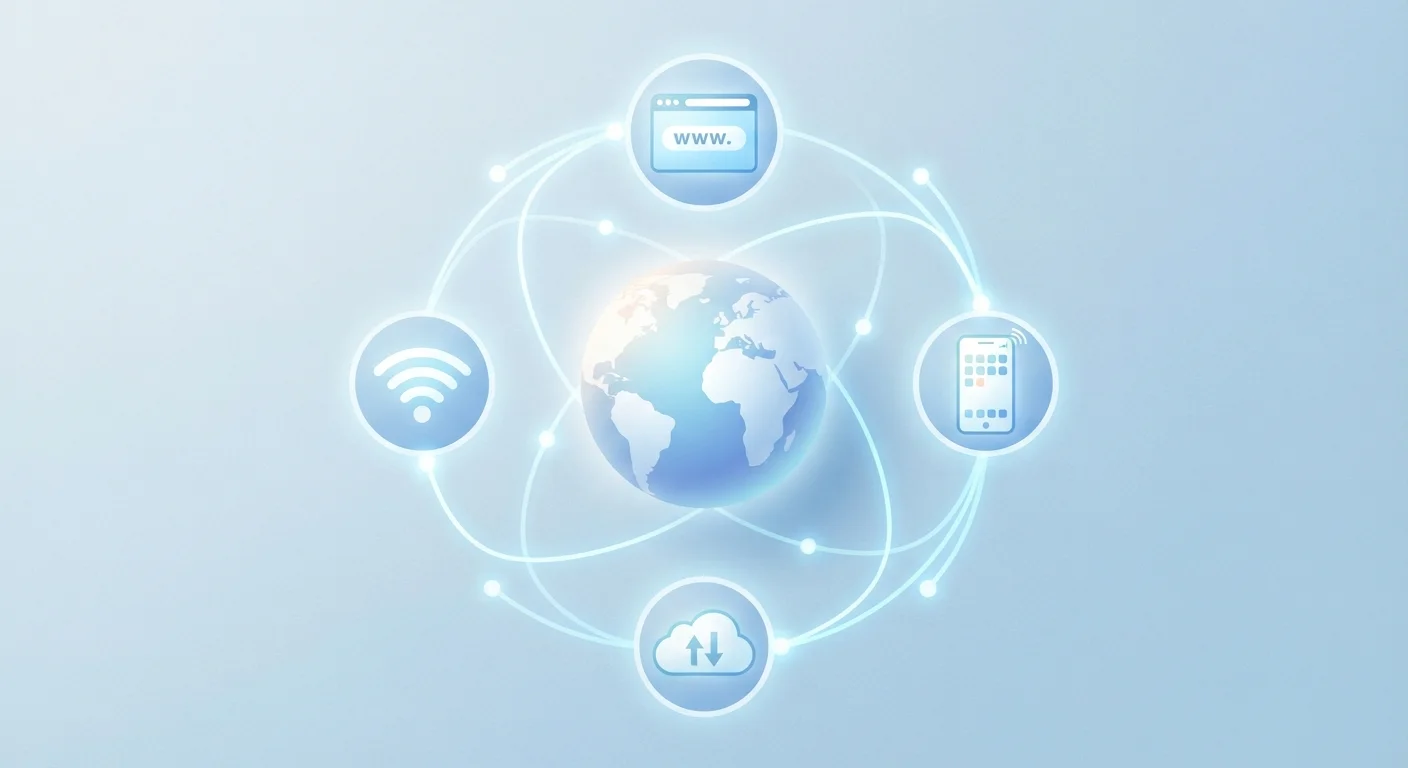
Think of the internet as a vast postal system for data. Millions of computers, servers, and devices around the world are physically connected — by fiber-optic cables under oceans, copper lines, and wireless signals — forming one enormous network. When you load a webpage, your device sends a request along this network, a server somewhere in the world responds, and the data travels back to your screen in fractions of a second.
Your Internet Service Provider (ISP) — the company that supplies your home broadband or mobile data — acts as your on-ramp to this network. Without them, your device would have no path to the wider internet, regardless of how many apps you have installed.
Server
A computer — usually powerful and running continuously — that stores data and delivers it to other devices on request. Every website lives on at least one server.
IP Address
A unique numerical label (like 192.168.1.1) assigned to each device on a network. It works like a postal address, telling the internet where to send data.
Bandwidth
The maximum amount of data your internet connection can transfer per second. Higher bandwidth means faster downloads and smoother streaming.
Encryption
A process that scrambles data so only the intended recipient can read it. When a website uses https, your connection to it is encrypted.
URL
Uniform Resource Locator — the full web address that points to a specific page or file online, such as https://example.com/article.
Two-Factor Authentication (2FA)
A security method that requires two separate proofs of identity — usually a password plus a temporary code — before granting account access.
Data travels in small chunks called packets. Each packet finds its own efficient route across the network and reassembles at the destination — which is why streaming video still works even if part of the network is busy.
Browsers, Search Engines, and Websites: What's the Difference?
These three terms are often used interchangeably, but they describe distinct things.
- A browser is software installed on your device — the application you open to navigate the web. Common examples include Chrome, Firefox, Safari, and Edge.
- A search engine is a website you visit inside your browser that helps you find other websites. Google, Bing, and DuckDuckGo are search engines, not browsers.
- A website is a collection of pages stored on a server somewhere in the world, identified by a unique URL (web address).
When you type a question into the search bar, your browser sends that query to the search engine's servers. Those servers scan an index of billions of pages and return ranked results — all within seconds. The search engine doesn't browse the web in real time; it searches a pre-built index assembled by automated programs called crawlers.
Bookmark Sites You Trust
Instead of searching for a bank or health site every time, save it as a bookmark after visiting it directly. This reduces the risk of accidentally clicking a lookalike site from search results. Bookmarks also load faster than retyping a long URL.
For a deeper look at the devices you use to access all of this, the Device Spec Glossary explains the technical labels on your hardware in plain language.
The Cloud: Where Your Files Really Live
"The cloud" sounds abstract, but it is simply someone else's computer — specifically, a large data center full of servers maintained by companies like Google, Apple, Microsoft, and Amazon. When you save a photo to cloud storage or edit a document in a web app, your file is being stored on those remote servers and delivered back to you over the internet.
The practical benefit is access from anywhere: your phone, your laptop, a borrowed computer at a library. The trade-off is that you're trusting a third party with your data, and access depends on having a working internet connection.
Cloud vs. Local Storage
Locally stored files live only on the physical storage inside your device. Cloud-synced files exist both locally and on remote servers, updating automatically. Understanding which is which matters when you're offline or if a device is lost or damaged. Check your app settings to see what is syncing and what isn't.
Locally stored files live only on the physical storage inside your device. Cloud-synced files exist both locally and on remote servers, updating automatically. Understanding which is which matters when you're offline or if a device is lost or damaged.
Staying Safe Online: The Basics
You don't need to be a security expert to protect yourself online. A handful of consistent habits cover the vast majority of everyday risks.
- Use strong, unique passwords. A password manager can generate and store these so you don't have to remember them all.
- Enable two-factor authentication (2FA) on important accounts. This adds a second verification step — typically a code sent to your phone — so a stolen password alone isn't enough to access your account.
- Keep software updated. Updates frequently patch security vulnerabilities that attackers exploit.
- Pause before clicking links in emails or messages, especially if they create urgency or ask for personal information.
For a thorough walkthrough of how to build these habits from the ground up, see our guide on getting started with online privacy. You can also explore the broader Privacy & Security hub for more accessible advice.
Putting It All Together
The online world is large, but its building blocks are straightforward. Data travels across a global network of physical connections. You access it through a browser, navigate it with search engines, and store things in the cloud — which is just a distant server. Staying safer online requires awareness and habit, not technical expertise.
Each concept here unlocks the next. Once you understand how a browser differs from a search engine, troubleshooting a connection problem or evaluating a suspicious link becomes far less intimidating. If you use smart home devices, the Smart Speakers Explained guide applies these same ideas to how those devices connect and communicate.
The internet was designed to be open and accessible. Understanding its basics is the first step to using it on your own terms.
Online Privacy From Scratch
A beginner-friendly walkthrough of foundational privacy habits — passwords, 2FA, and more — with no technical background required.
Device Spec Glossary
Explains the technical labels and specifications you encounter on everyday gadgets in plain, accessible language.