

Key Takeaways
Wi-Fi Router
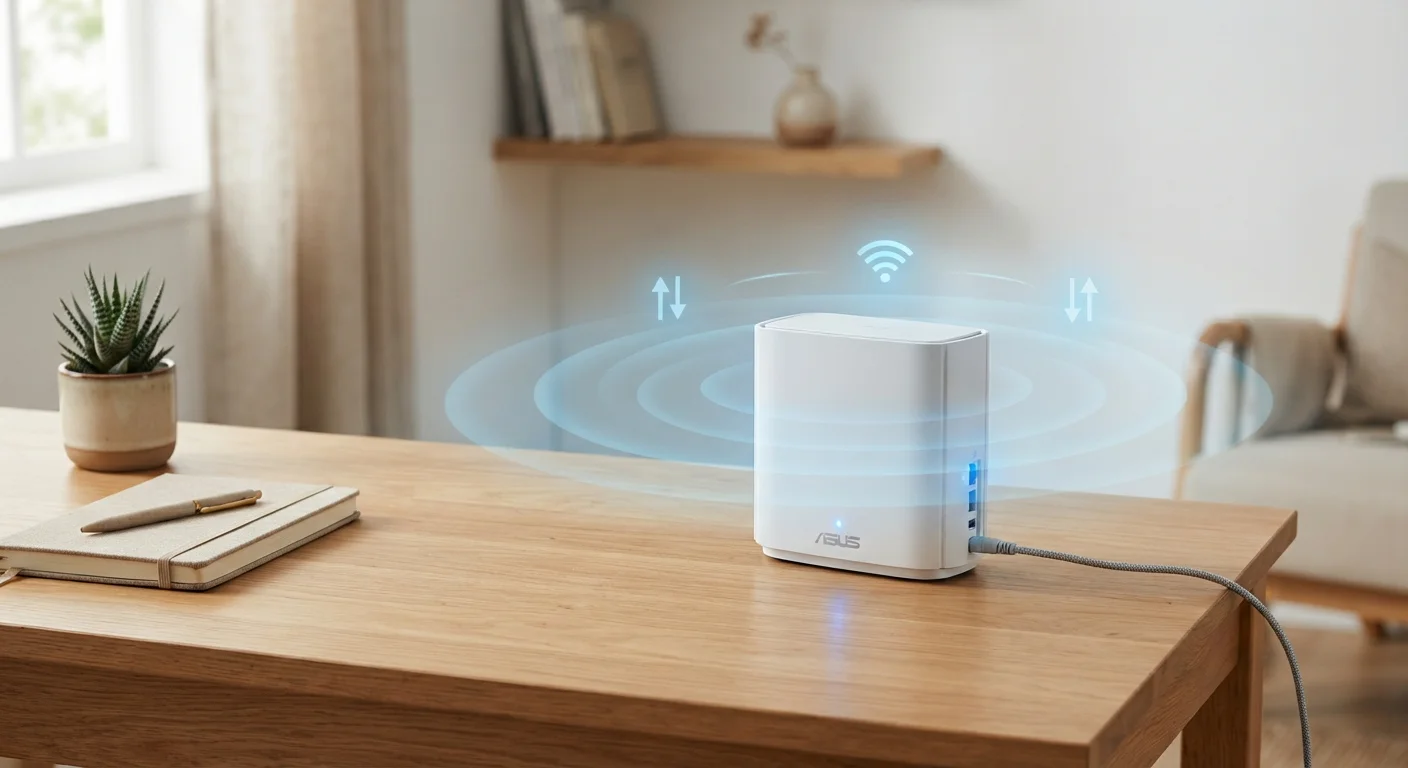
A Wi-Fi router is a device that connects your home network to the internet and wirelessly distributes that connection to your phones, laptops, TVs, and other devices. It acts as a traffic controller — directing data to the right device at the right time. Without it, devices in your home couldn't communicate with the internet or, in many cases, with each other.
Technically, most home units combine two functions: a router (which directs traffic between networks) and a wireless access point (which broadcasts the Wi-Fi signal). Many also include a built-in switch for wired connections.
The Router's First Job: Playing Traffic Controller
Every time you load a webpage, stream a video, or send a message, data travels across the internet in small packets. Your router's core job is directing those packets to the right destination — and doing it for every device on your network simultaneously.
To keep track of everything, your router uses a system called DHCP (Dynamic Host Configuration Protocol). When a device joins your network, the router automatically assigns it a local IP address — a unique label, like a seat number, that lets the router know where to send each piece of data. You never see this happen, but it occurs every time your phone connects to Wi-Fi.
The router also communicates outward to your internet service provider (ISP) using a separate, public-facing IP address. It acts as the boundary between your private home network and the broader internet — managing what goes in and out through a process called NAT (Network Address Translation).
22+
Average connected devices per U.S. household
According to Deloitte's 2023 Digital Media Trends report, the average American home now supports more than 22 connected devices.
~70%
Signal strength lost through a single concrete wall
Industry testing consistently shows that dense building materials like concrete can reduce Wi-Fi signal strength by 60–70%, significantly impacting range.
Wi-Fi 6
Current mainstream router standard
Wi-Fi 6 (802.11ax), released in 2019, is now the broadly deployed standard, offering improved speed and efficiency when multiple devices connect simultaneously.
Broadcasting the Signal: How Wi-Fi Actually Works
The wireless side of a router works by transmitting radio waves — the same basic technology as a radio, but operating on specific frequencies designed for data. Most modern routers broadcast on two bands: 2.4 GHz and 5 GHz. Each has tradeoffs.
The 2.4 GHz band travels farther and passes through walls more easily, but it's shared by many other devices — microwaves, baby monitors, neighboring networks — making it more prone to interference. The 5 GHz band delivers faster speeds but doesn't travel as far. Newer routers also support a third band at 6 GHz, introduced with Wi-Fi 6E, which offers even faster speeds in less congested airspace.
When your laptop or phone connects wirelessly, it's essentially having a rapid back-and-forth radio conversation with the router — sending requests and receiving data dozens or hundreds of times per second.
Place Your Router for Maximum Coverage
Aim for a central location in your home, off the floor, and away from thick walls, metal appliances, and other electronics. A router sitting on a shelf in the middle of your home will almost always outperform one hidden in a corner closet — even if the hardware is identical.
Why Placement and Settings Matter More Than You'd Think
A router tucked inside a cabinet, placed on the floor, or positioned in a far corner of your home is working against itself. Solid objects — particularly concrete, brick, and metal — absorb or reflect radio waves, cutting signal strength dramatically before it reaches your devices.
Positioning your router in a central, elevated location in your home gives the signal the best chance of reaching every room. If your home is large or has multiple floors, a mesh network system (multiple access points working together) can extend coverage more reliably than a single router.
On the settings side, your router's security configuration matters just as much as its location. Most routers ship with a default administrator username and password that's the same across thousands of units of the same model — a known vulnerability. Changing that password, enabling WPA2 or WPA3 encryption, and keeping your router's firmware (its internal software) updated are basic steps that meaningfully reduce your exposure to unauthorized access.
What Happens When Things Go Wrong
Most router problems fall into a handful of predictable categories: the connection drops entirely, speeds slow to a crawl, or certain devices can't connect. Before assuming hardware failure, a simple restart resolves the majority of these issues. Routers run continuously and accumulate small errors in memory over time — a full power-cycle clears the slate.
Persistent slowness is often a signal issue (the device is too far from the router) or a bandwidth issue (too many devices competing for limited capacity). Checking which devices are connected, and whether any are running large downloads or updates in the background, is a useful first diagnostic step.
If a restart and basic checks don't help, logging into your router's admin panel — usually accessible by typing your router's IP address into a browser — gives you a dashboard of connected devices, signal data, and configuration options. Your router's documentation or your ISP's support line can walk you through the specifics for your model.
“The home router has quietly become one of the most important appliances in a modern household — yet most people know less about how it works than they do about their microwave.”
— Vint Cerf, Internet pioneer and co-designer of the TCP/IP protocol