

Key Takeaways
USB (Universal Serial Bus)
USB stands for Universal Serial Bus, a standard that defines how devices connect to each other and transfer data or power. The "universal" part was always an aspiration — in practice, USB has evolved into several distinct connector shapes and versions, each with different speed and power capabilities. The type of port on your device determines which cables will physically fit and what features you can actually use.
USB versions (such as USB 2.0, 3.2, and 4) describe the underlying protocol's data-transfer and power-delivery capabilities, while connector types (USB-A, USB-C, Micro-USB) describe physical shape — these two dimensions are independent of each other.
Why So Many Connectors? A Brief History
USB was introduced in 1996 to replace the chaos of serial ports, parallel ports, and proprietary connectors that cluttered the back of every PC. It largely succeeded — but as devices shrank and demands for speed and power grew, the standard kept evolving, spawning new connector shapes along the way.
The rectangular USB-A connector you've been plugging in (often wrong on the first try) has been around since the beginning. Smaller devices needed smaller ports, so Mini-USB and Micro-USB appeared for phones and cameras. When USB-C arrived in 2014, it offered a reversible, compact design intended to replace them all — but legacy hardware meant the older connectors didn't disappear overnight. That's how we ended up with the drawer full of cables most people have today.
For a deeper look at how spec labels across all your devices are written, see our Device Spec Glossary for plain-language explanations.
The Main Connector Types, Explained
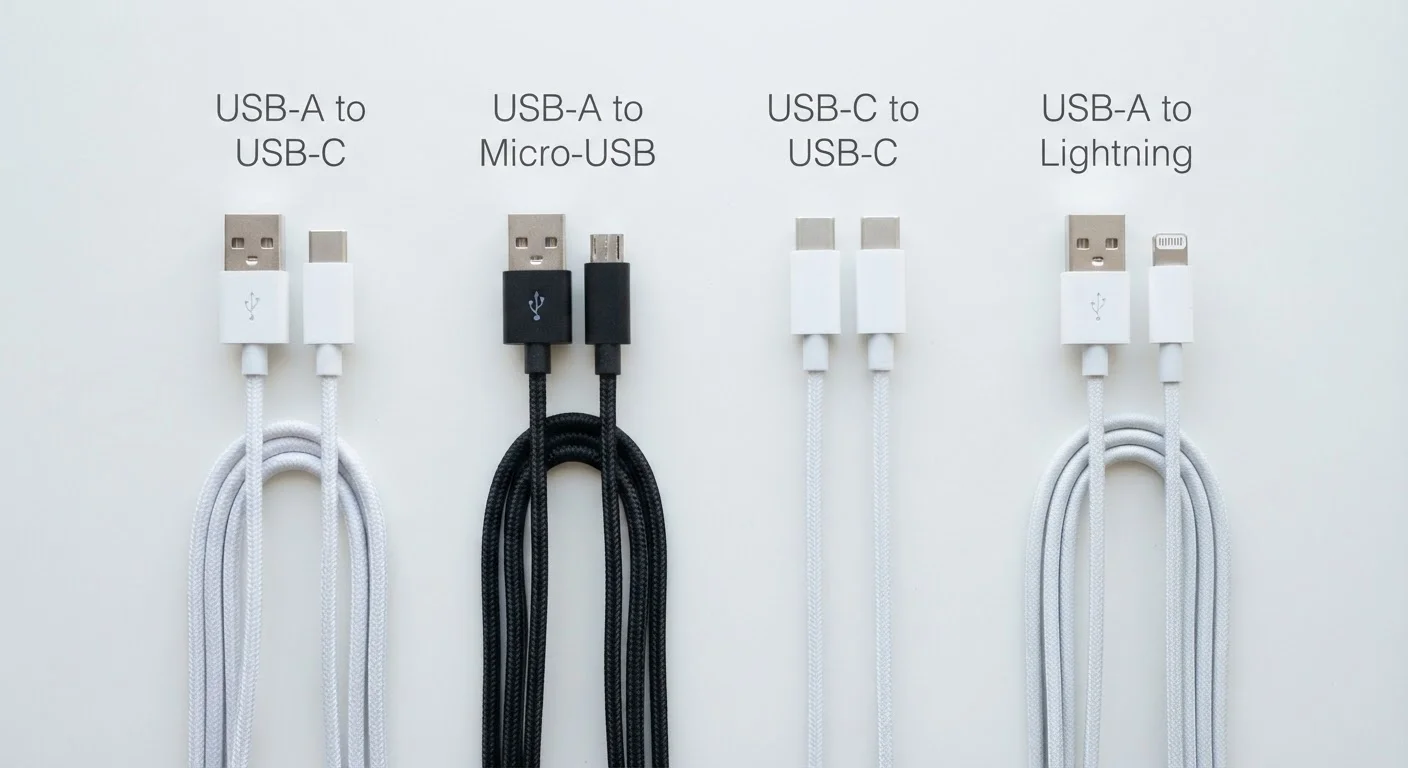
Here's what each connector you're likely to encounter actually is:
- USB-A: The classic flat, rectangular plug. Still common on computers, wall chargers, and TVs. Supports everything from USB 1.1 through USB 3.2, depending on the port — look for a blue plastic tab inside to identify a USB 3.0 or faster port.
- Micro-USB: The small, trapezoidal connector that dominated Android phones and accessories through the 2010s. Supports up to USB 2.0 in most consumer implementations — fine for charging and basic data, slow by today's standards.
- USB-C: The small, oval, reversible connector now standard on most new laptops, Android phones, tablets, and accessories. The connector shape alone tells you nothing about speed — a USB-C port might carry USB 2.0, USB 3.2, or USB 4 depending on the device. Always check the device or cable spec.
- Lightning: Apple's proprietary connector, used on iPhones through the iPhone 14 and many older iPad and AirPod models. It's not a USB standard — it's a licensed Apple interface. Starting with the iPhone 15, Apple moved to USB-C under EU regulatory pressure.
40 Gbps
Maximum Thunderbolt 4 data transfer speed
Thunderbolt 4, introduced in 2020, offers up to 40 Gbps — roughly 8x faster than USB 3.2 Gen 1 (5 Gbps) over the same USB-C connector.
240W
Maximum power delivery over USB-C
The USB Power Delivery 3.1 specification, finalized in 2021, raised the ceiling to 240W — enough to charge high-performance laptops over a single USB-C cable.
1996
Year USB was first introduced
USB 1.0 launched in 1996 with a maximum speed of 12 Mbps; the standard has since expanded to encompass speeds more than 3,000 times faster.
Thunderbolt: USB-C's High-Performance Sibling
Thunderbolt is a separate protocol developed by Intel in collaboration with Apple. It uses the USB-C physical connector, which is why a Thunderbolt port and a USB-C port look identical — and why confusion is so common.
The difference is performance. Thunderbolt 4 supports data transfer up to 40 Gbps, can drive two 4K monitors simultaneously, and supports daisy-chaining multiple devices. Standard USB-C at USB 3.2 Gen 2 tops out at 10 Gbps. Thunderbolt ports are typically marked with a small lightning bolt (⚡) symbol. A regular USB-C cable plugged into a Thunderbolt port will work — just at USB speeds, not Thunderbolt speeds.
Identify Thunderbolt Ports at a Glance
Look for a small lightning bolt (⚡) symbol printed next to the USB-C port on your laptop or monitor. If you see it, that port supports Thunderbolt in addition to standard USB-C. No symbol usually means standard USB-C only. Some devices also print the USB version number (e.g., "USB 3.2") directly beside the port.
USB Versions: The Numbers Behind the Speed
Alongside connector shapes, USB version numbers define data-transfer and power capabilities. The naming history is famously confusing — the USB Implementers Forum rebranded versions multiple times. Here's a practical translation:
| Marketing Name | Max Data Speed | Common Use |
|---|---|---|
| USB 2.0 | 480 Mbps | Keyboards, mice, basic charging |
| USB 3.2 Gen 1 (formerly USB 3.0) | 5 Gbps | External hard drives, faster charging |
| USB 3.2 Gen 2 | 10 Gbps | SSDs, high-speed peripherals |
| USB 4 | 40 Gbps | Docks, high-res video, fast storage |
USB 4 is built on the Thunderbolt 3 specification and requires USB-C connectors. For everyday tasks like syncing a phone or charging a laptop, USB 3.2 Gen 1 is typically more than sufficient.
What This Means for You Practically
The most important habit is checking both ends of the equation: your device's port spec and your cable's rating. A USB-C cable rated for USB 2.0 will charge your laptop, but at a fraction of the speed a USB 3.2 or USB 4 cable would provide. Similarly, plugging a Thunderbolt drive into a standard USB-C port will work for file access — just not at Thunderbolt speeds.
When buying cables, look for packaging that states the USB version, maximum wattage, and whether it supports video output if you need that feature. Cables that list no specification at all are typically charging-only or USB 2.0 at best. Storing cables with a small label of what they support can save real frustration later.
The good news: using a slower cable than your device supports won't damage anything. You'll simply be leaving performance on the table.